Microsoft’s New CCleaner Alternative: A Comprehensive Guide
Introduction to Microsoft PC Manager
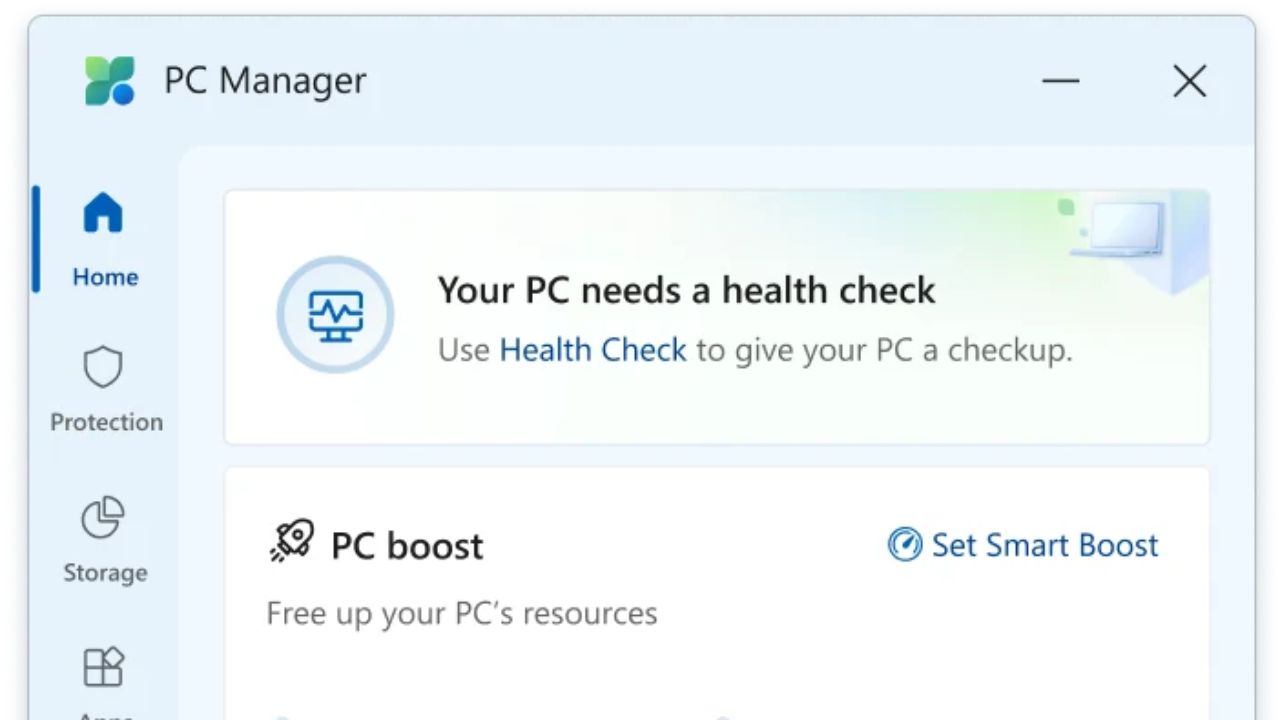
Microsoft has introduced a new tool called Microsoft PC Manager. This software aims to boost your PC performance, clean your system, and free up space. It’s designed to provide a comprehensive solution for managing your storage, handling large files, and reducing pop-up interruptions.
Features of Microsoft PC Manager
The PC Manager comes with a plethora of features aimed at enhancing your computer’s performance. These include health checks, pop-up management, and a toolbox with various utilities. Let’s delve deeper into these features and understand how they work.
Boost PC Performance
One of the key promises of Microsoft’s PC Manager is to boost your PC performance. This involves freeing up your PC resources by emptying temporary files and cleaning the cache. The PC Manager can automatically boost your PC when it detects high RAM usage or a significant amount of temporary internet files.
Health Check
The health check feature allows you to quickly find and fix issues on your system. With a single click, you can scan and clean threats, ensuring your PC remains in good health. This tool aims to provide a hassle-free experience for maintaining your computer’s performance.
Pop-up Management
Pop-up management is another significant feature of the PC Manager. It reduces ads and pop-up interruptions, providing a cleaner and uninterrupted computing experience. However, it’s worth noting the irony that Microsoft themselves add ads to their operating system.
General Settings and Customization
The PC Manager offers several customization options in the general settings. You can enable the software to start up when you boot your PC and gain early access to new features. Additionally, the tool supports auto-updates to ensure you always have the latest version.
Appearance and Language
You can customize the appearance of the PC Manager by switching between light and dark modes. The tool also supports multiple languages, allowing you to choose the one that suits you best. These customization options ensure a personalized user experience.
Protection and Updates
The protection section includes virus and threat protection along with Windows updates. It provides a glance at your system protection settings and allows you to manage them efficiently. You can also change your default browser settings and repair the taskbar if needed.
Cleaning and Storage Management
One of the primary functions of the PC Manager is to clean your system and manage storage. This includes deep cleaning to remove junk files and managing large or duplicate files. Let’s explore these features in detail.
Deep Clean
The deep clean feature scans your system for junk files and removes them. This includes downloaded files, large files, and duplicate files. By cleaning these unnecessary files, you can free up significant storage space on your PC.
Duplicate File Scanner
The duplicate file scanner is a handy tool for clearing up storage. It scans your drives for duplicate files and allows you to remove them. This is particularly useful if you have a lot of data and limited storage space.
Storage Sense
Storage Sense automatically cleans up temporary files and other unnecessary data. It handles application cache, temporary files, Microsoft Defender logs, Windows updates, and more. This feature ensures your system remains clutter-free and optimized.
Application and Task Management
The PC Manager also includes tools for managing applications and tasks. This encompasses ending tasks, managing startup applications, and handling installed apps. These features provide a centralized way to manage your system’s resources.
Ending Tasks
You can end tasks for any applications that are using excessive system resources. While this can also be done through the Task Manager, the PC Manager provides a more streamlined interface for this purpose.
Managing Startup Applications
Managing startup applications is crucial for optimizing your PC’s performance. The PC Manager allows you to control which applications start up with your system, reducing unnecessary load during boot-up.
Installed Apps
The installed apps section takes you directly to the list of applications installed on your system. From here, you can manage or uninstall any applications that you no longer need, freeing up additional resources.
Toolbox and Additional Utilities
The toolbox in the PC Manager includes various utilities that can be toggled on or off. These tools provide quick access to functionalities like screenshots, screen recording, notepad, calculator, and more.
Web Tools
In addition to basic utilities, the toolbox includes web tools like Bing Translator and a currency converter. These tools can be handy for quick translations or currency conversions without needing to open a browser.
Custom Links
You can also add custom links to the toolbox, providing quick access to frequently used websites or tools. This customization enhances the usability of the PC Manager, making it a more versatile tool.
Health Check and Feedback
The health check feature runs a comprehensive scan on your system, checking for issues like browser cache, Windows cache, temporary files, and system logs. This ensures your PC remains in optimal condition.
Feedback Section
The feedback section allows you to provide feedback to Microsoft about the PC Manager. This helps them improve the tool based on user experiences and suggestions. The feedback section is a valuable addition for continuous improvement.
Conclusion
Microsoft’s PC Manager is a comprehensive tool for managing and optimizing your PC. It offers a range of features, from cleaning junk files to managing applications and tasks. However, it’s essential to note that while it can make your PC feel faster, it doesn’t actually speed up your computer.
Ultimately, the PC Manager provides a convenient way to handle various system maintenance tasks. Whether you’re looking for an alternative to CCleaner or simply want to try a new tool, Microsoft’s PC Manager is worth exploring.